
The issue outlined below has been resolved.
Notice from ESI Technology:
We are aware of an issue impacting the FMAX/Docupace integration for joint accounts and entity accounts with two or more authorized signers.
The joint owner or additional authorized signer are not automatically feeding from FMAX into Docupace when the work item is created.
Continue creating the work item as normal. Once you create the work item, you will need to add the additional client folder(s) to that work item manually. You have two options: you can add the folder yourself using these steps, or you can call the Docupace Workflow Support team at 800-344-7437, option 2, option 4, option 2, and they can add the client folder for you.
Within ePACs Work Item section, click on the details icon

Scroll down to the Folder section, click on the details icon

Within the Client Folder section, click Add

Search for the client by name or SSN
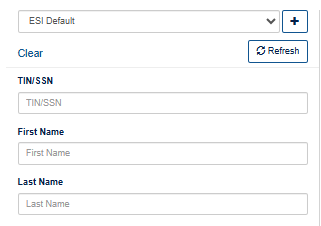
Select the client by clicking the checkmark over their record

Once you select the client, click Save and Close on the next two screens to get back to your work item
Before sending the package for eSignature, you will need to review the signer tags on the Statement of Investment Selection (SIS), (A best practice for all eSigns since there can occasionally be exceptions that require additional signatures.) You will need to add the signer tag for the joint owner or additional authorized signers manually. Instructions on how to check the DocuSign tags can be found by logging into the Agent Portal and clicking here.
We are working with Docupace to resolve this issue, and we will provide an update once we have a confirmed resolution or next step.