

The Advertising Guidance Team would like to make you aware of an upcoming update to AdTrax on December 1st that will introduce a new document viewer and annotation tool.
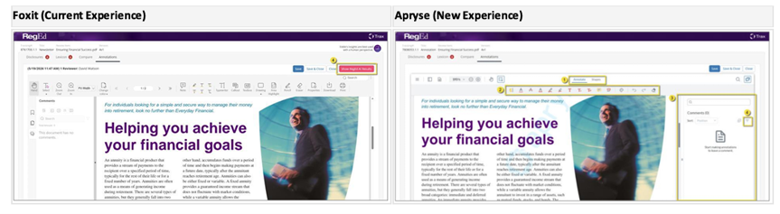
The current Foxit document viewer will be replaced with Apryse, which offers a more modern, user-friendly interface while maintaining the core functionality you are familiar with.
What’s Changing?
The update will affect how documents are viewed and annotated within AdTrax. Here are some of the key changes you can expect:
- Updated Interface: The comments panel will move from the left side of the screen to the right, and annotation tools will have a refreshed appearance.
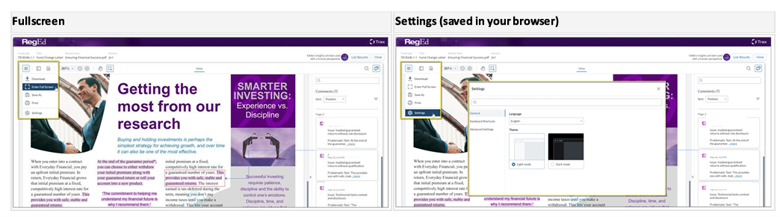
- Additional Viewing Options: New features, including full screen mode and customizable display settings, will be available.
What’s Staying the Same?
The core document viewing and annotation functionality will remain largely unchanged. You will still be able to download documents and view annotation history through the same areas of AdTrax.
What Do You Need to Do?
No action is required on your part; however, we encourage you to review the screenshots below comparing the current Foxit experience with the new Apryse interface.
The goal of this update is to provide a cleaner, more intuitive experience without changing your existing workflow.
For the AdTrax link, how to submit, and Advertising Guidelines, go to: Agent Portal → Tools → Compliance → Advertising/Social Media
For additional questions, the Advertising Guidance Team is here to help. Contact the team at AGT@nationallife.com or call (802) 229-3129.
Thank you for your attention as we continue to improve the AdTrax user experience.
In general, Apryse retains the core Foxit functionality while providing a cleaner, updated interface.
Apryse also offers new options such as fullscreen mode and customizable settings.
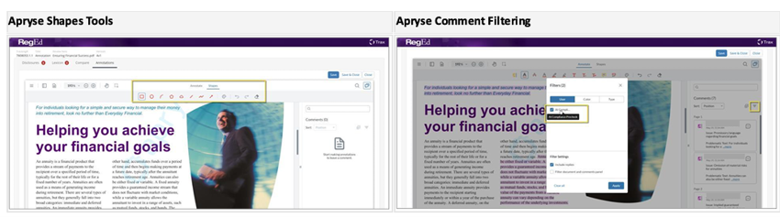
The following changes affect appearance and tool usage (highlighted in orange).
- The comment panel has moved to the right.
- Annotation tools are now split into two toolbars: Annotate and Shapes.
- The same annotation tools (Highlight, Underline, Strikeout, etc.) function the same as before, but with new icons.
- After using most markup tools (such as Highlight), you must double-click the comment in the right panel to enter text. Only Note and Callout allow text entry immediately after placement.
TC9243824(1126)1